
Help · MIDI
MIDI controller.
Fidelis Rig learns what your controller sends. No numbers to memorize.
The short version
- Right-click the pedal you want to control and go to MIDI, then Learn.
- Press the footswitch, or move the expression pedal, on your controller.
- Done. Fidelis Rig shows what it learned, for example “Done. CC 20 on Channel 1.”
On each pedal you can teach Engage (on and off), the effect, the Preamp and Expression (Treadle).
One footswitch, one message
Each footswitch has to send a different message. If two send the same one, both control the same thing.
The simplest is CC (Control Change): a different number for each footswitch, with value 127. Any channel works (1 is the most common), and Fidelis Rig keeps the one your controller already uses.
Expression pedal
Plug the pedal into your controller with a TRS cable and run Learn by moving the pedal.
Then calibrate it so the whole travel counts: open Edit, MIDI Settings, click Calibrate, move the pedal from heel to toe, all the way, and click Done. If the sweep is too short, the calibration is not applied: try again, going all the way.
Pedal working backwards? Use Expression Inverted.
If nothing happens
- In the standalone app: open Edit, MIDI Settings and enable your controller under MIDI Input Devices. It must be connected and sending MIDI.
- In the plugin: your DAW delivers the MIDI. Enable the controller in the DAW and route its MIDI to the Fidelis Rig track.
- If nothing arrives in 15 seconds, Learn is cancelled. Just try again.
Footswitch in Song Mode
In Song Mode, the four arrows in the bottom bar can be driven by a footswitch: the two on the SONG line (previous and next song) and the two on the SECTION line (previous and next part).
- Go into Song Mode (the Manual / Song switch in the bottom bar).
- Right-click the arrow you want to control and choose MIDI Learn. You see “Waiting for MIDI”.
- Press the footswitch. Done: it shows, for example, “Done. CC 21 on Channel 1.”
To remove it: right-click the arrow, Clear MIDI; the program confirms with the arrow’s name. The footswitch can send a note or a CC. These assignments only work in Song Mode; in Manual, the arrows stay still. They keep working in Live Mode. See Song Mode and Live Mode.
Example: M-VAVE Chocolate (CubeSuite app)
A setup tested with Fidelis Rig. In the CubeSuite app:
| Where (CubeSuite) | What to choose |
|---|---|
| Select the MIDI interface type | Expression Pedal (to use an expression pedal on the TRS cable) |
| Mode selection | Advanced custom mode |
| Footswitch [A], Select Stampede Mode | Single step (single Bank information), CC 20, value 127, Channel 1 |
| Footswitch [B] | Single step, CC 11, value 127, Channel 1 |
| Footswitch [C] | Single step, CC 21, value 127, Channel 1 |
| Footswitch [D] | Single step, CC 22, value 127, Channel 1 |
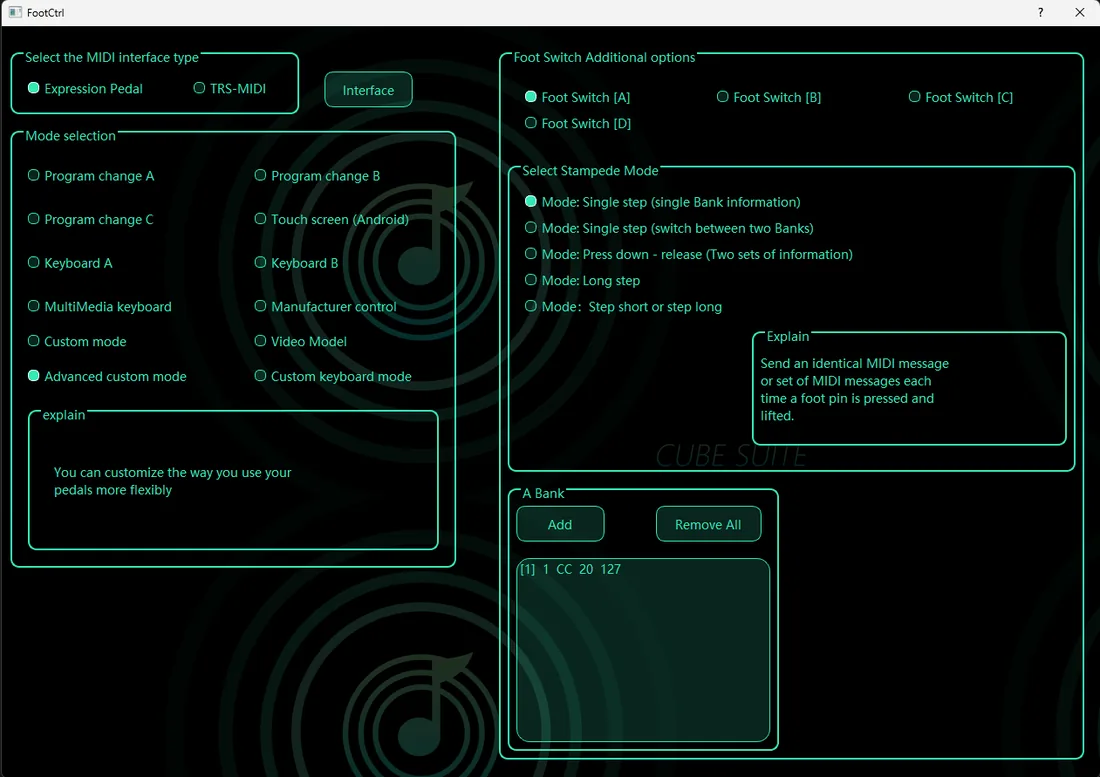
To create each code: in the “A Bank” box, click Add, choose Channel 1, Midi Type CC, Data1 = the number (20, 21…) and Data2 = 127, then OK.
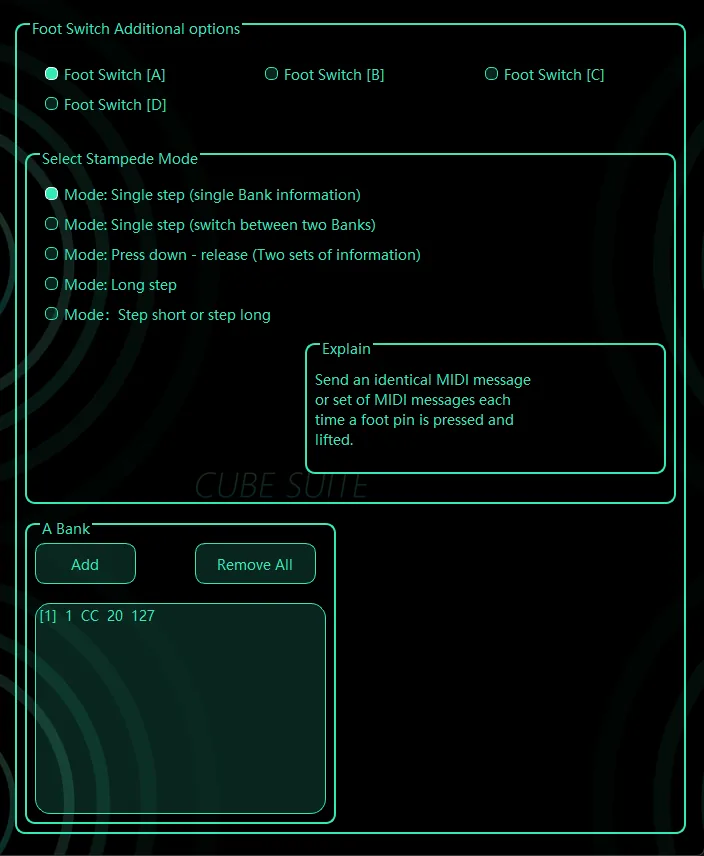
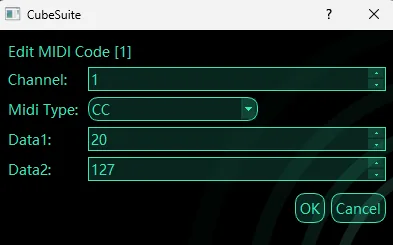
If your expression pedal also sends CC 11, change footswitch B to another number (CC 23, for example) so the two don’t mix.
Tips
- Set up the controller first, then run Learn in Fidelis Rig, pedal by pedal.
- Your assignments are saved, work in every scene and also drive the Song Mode (next part, next song; see above).
- To remove one: right-click the pedal, MIDI, Clear Assignment (or Clear all for this pedal).
Still stuck? Write to contact@fidelisrig.com and tell us what you see on the screen.